
Text to Video
Describe the subject, setting, and action you want to see. Add lighting and camera direction to turn a written idea into a scene with a specific visual purpose.
Create with Magi-2
Introducing Magi-2
Follow complex directions and build longer scenes with coherent motion, reference control, and synchronized sound.
Magi-2 is a video generation model for precise prompt following, complex compositions, and consistent scenes across space and time. It generates up to 30 seconds of 1080p video with natively generated audio in one generation.
Use image, video, and audio references to guide the result. Make targeted edits or let Magi-2 plan camera coverage from your story, with a focus on keeping subjects, motion, and scenes coherent throughout longer clips.
Features
Shape your scene with written direction, reference media, and sound.
Describe the subject, setting, and action you want to see. Add lighting and camera direction to turn a written idea into a scene with a specific visual purpose.
Use images to communicate appearance, setting, or visual style. Explain what each reference should guide so your prompt gives the model a clear relationship between the assets and the scene.
Bring motion or sound references into the creative brief. Describe what you want to borrow from each source, then check the result rather than assuming every reference will be reproduced exactly.
Magi-2 generates audio alongside video, including dialogue, ambience, sound effects, and music. Describe the sound that belongs in your shot and review how it works with the generated action.
The full Magi-2 model supports scenes up to 30 seconds. Use that space for a sequence with a beginning, a change, and an ending instead of packing unrelated actions together.
Magi-2 supports timeline direction, shot transitions, and targeted video editing. Explain where the change should happen and what should remain consistent when planning a more detailed creative request.
Why Magi-2
Bring detailed close-ups, polished product visuals, and expressive performances into the scenes you create.
Give close-up shots depth with film-style lighting and carefully rendered surfaces. From skin to fabric, Magi-2 focuses on the fine details that make a scene feel tangible.
Build commercial-style scenes with controlled lighting, clear product detail, and believable materials. Explore a polished product reveal or an advertising concept without arranging a physical studio shoot.
Shape character moments through small shifts in expression, natural gestures, and body language. Magi-2 gives you a way to explore how emotion comes through in a glance, a pause, or a movement.
Use Cases
Explore four starting points for your next video brief.
Explore a reveal, a close-up, or a product in a setting. Describe the materials, light, and camera path to give your concept a specific direction before reviewing the generated details.
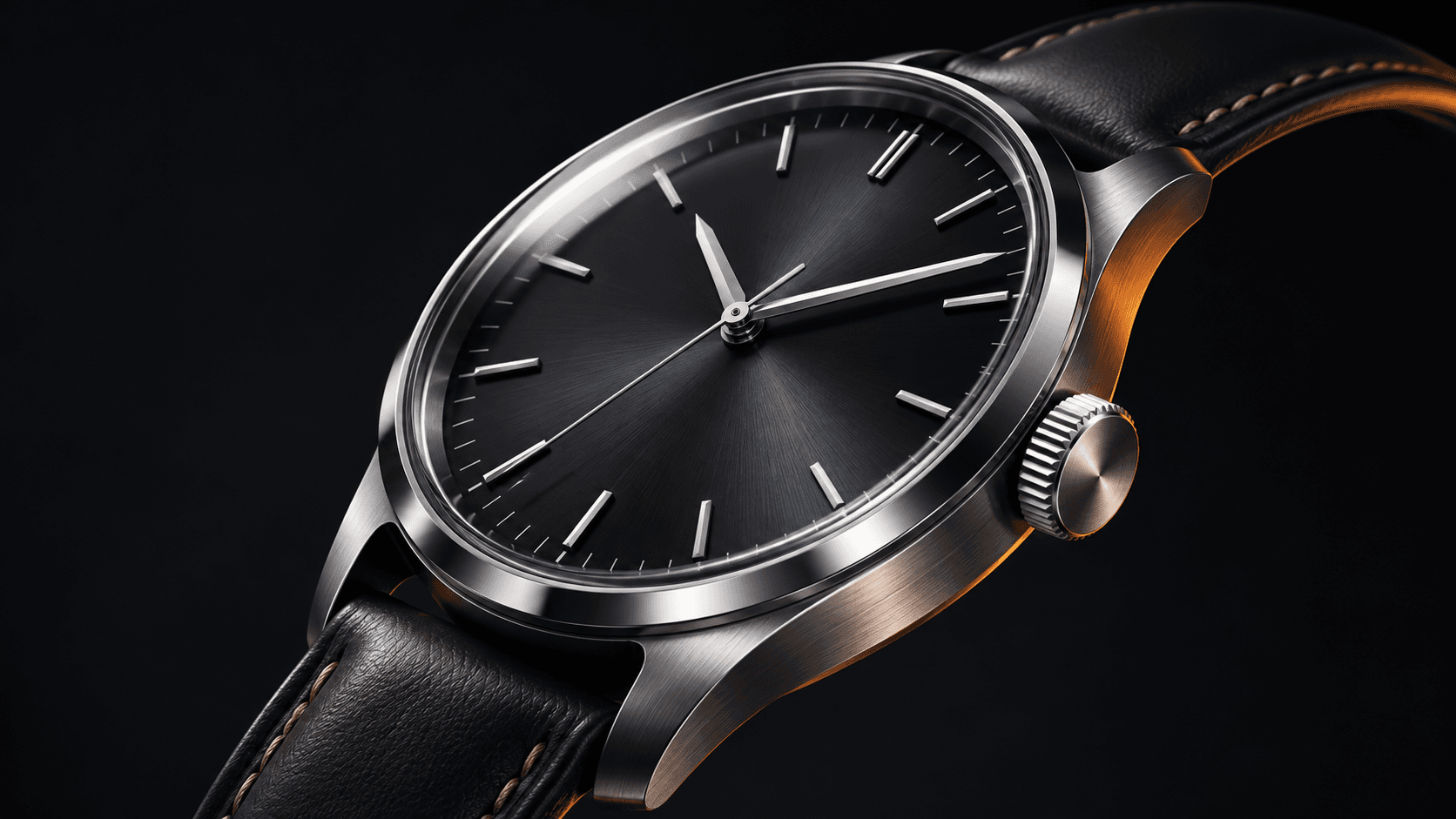
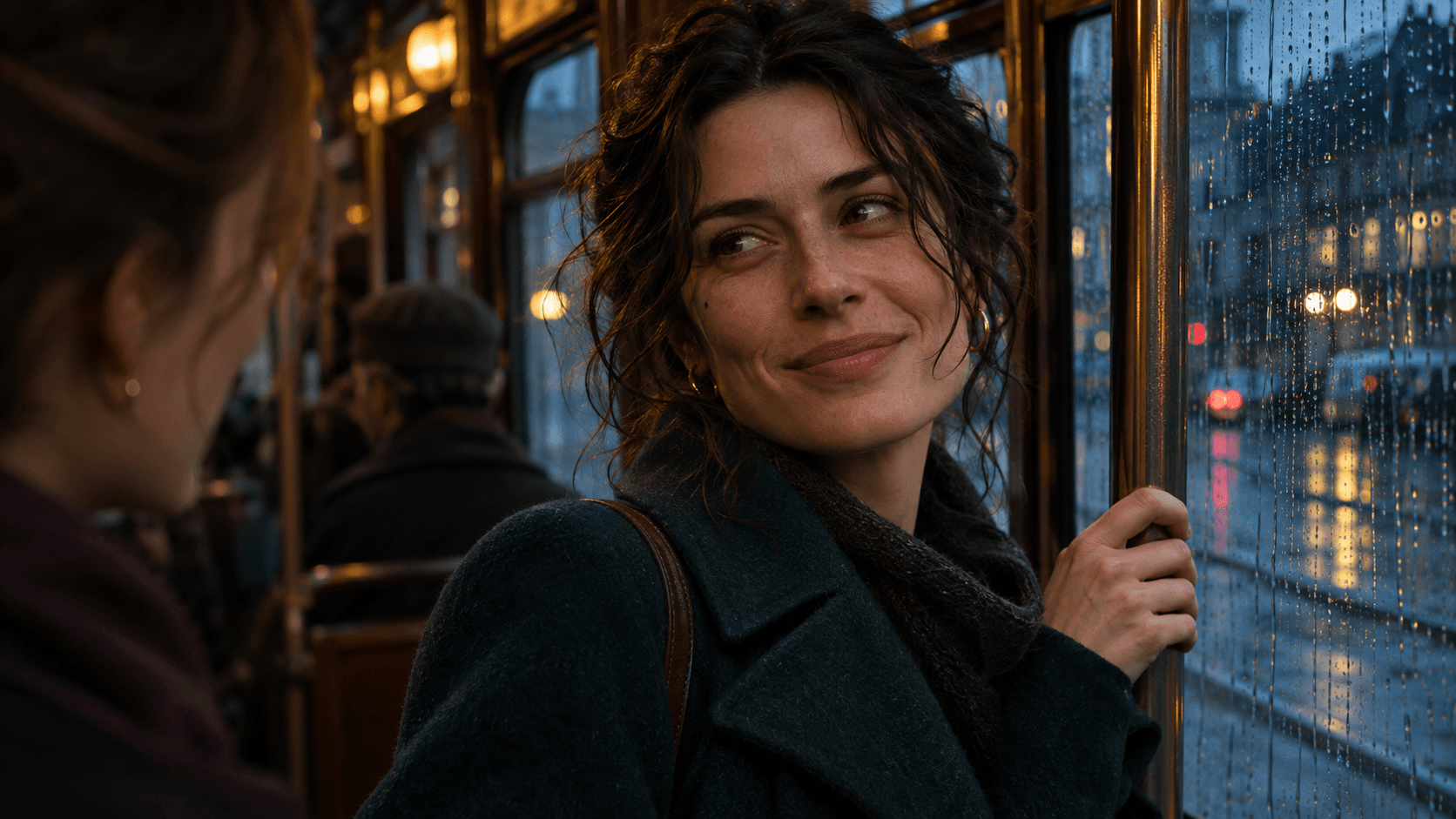
Build a moment around an expression, gesture, or short exchange. Give each character a clear action and describe the response you want, then check expressions and continuity in the output.
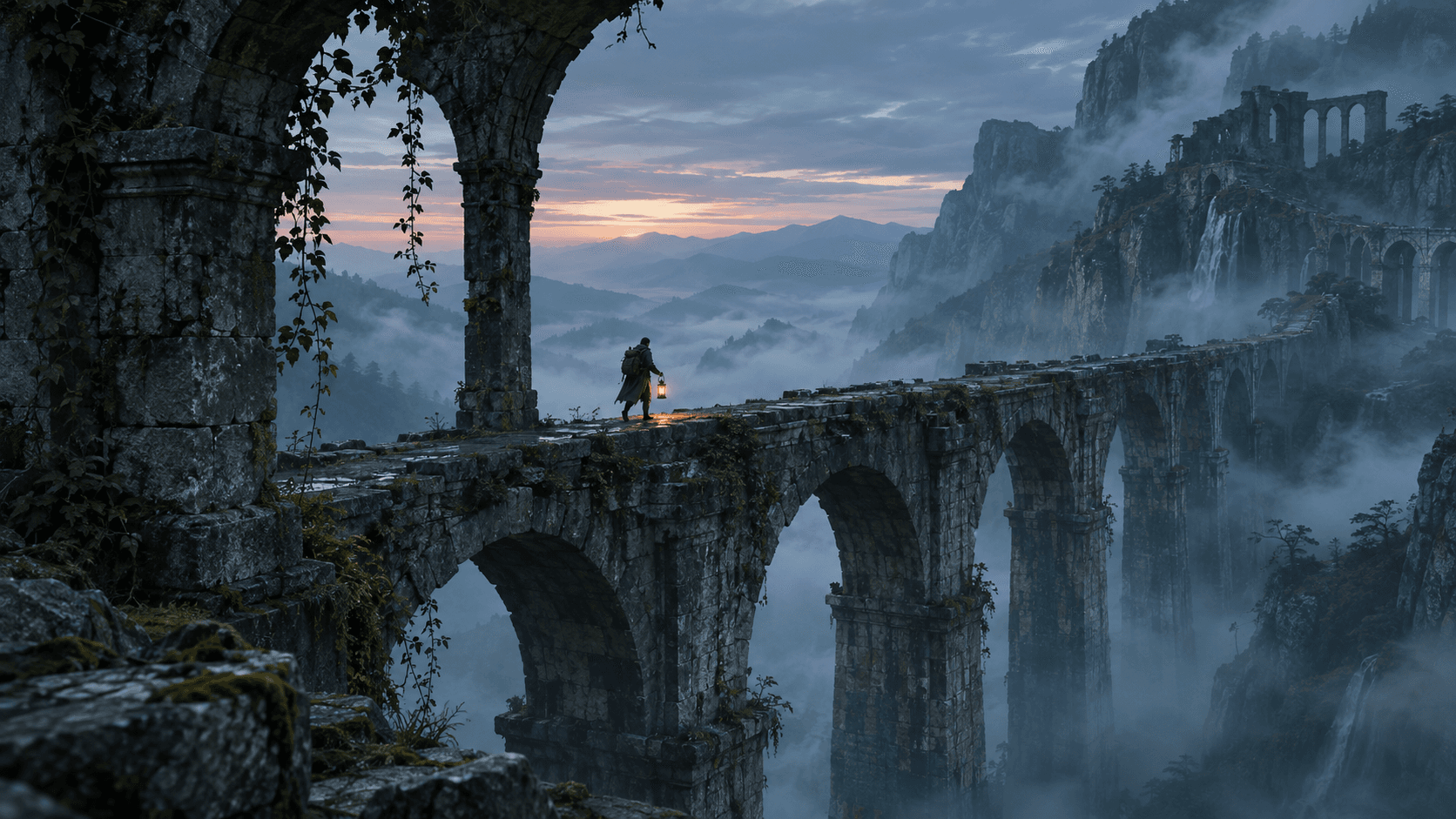
Plan an establishing view, a moving shot, or a transition between moments. Describe the mood and the order of events so the scene has a purpose beyond its visual style.
Try a focused opening action, a visual reveal, or a short story beat. Compare creative directions before choosing which idea deserves further editing and development for your intended audience.

Showcase
Explore cinematic scenes, product visuals, and character performances created with Magi-2.
Who It’s For
Choose a starting workflow based on the creative decision you need to make.
Start with a scene you can describe clearly. Use Magi-2 to explore how the action, setting, and sound work together, then refine the elements that matter to your story.
Turn a campaign brief into visual concepts for discussion. Review product appearance and any generated text carefully, and treat each output as a candidate for your production process.
Explore a shot idea, character moment, or sequence before committing to a direction. Use references and written instructions to communicate your intention, then assess the result against your creative brief.
Bring a shared scene description into concept reviews. Identify which details need revision and keep your references organized so the next generation tests a specific change instead of a different brief.
Model Specifications
Published specifications for the full MAGI-2 model.
Available inputs and settings on Magi AI depend on the connected model configuration.
Model Comparison
Compare published video specifications, reference limits, and editing options before choosing a model.
| Feature | Magi-2 | Seedance 2.5 |
|---|---|---|
| Maximum clip length | Up to 30 seconds | Up to 30 seconds |
| Published output resolution | 1080p | 480p, 720p, 1080p, and 4K via BytePlus |
| Image references | Up to 10 | Up to 30 |
| Video references | Up to 5 | Up to 10 |
| Audio references | Up to 5 | Up to 10 |
| Audio-video generation | Video and sound generated together | Video and sound generated together |
| Shot control | Timeline and shot-cut direction | Timestamp-based direction and camera control |
| Editing | Targeted video edits | Targeted audio-video edits, including green-screen workflows |
| Video extension | Not published in cited MAGI-2 release notes | Multi-round extension |
Seedance 2.5 publishes larger reference limits, 4K output options, and multi-round extension. Magi-2’s published full-model specification lists 30-second, 1080p audio-video generation with timeline control and targeted editing.
These are published capabilities, not a ranking of output quality. Available options depend on the provider and mode. “Not published” refers to the cited release notes, not proof that a feature is unavailable.
Read the full Magi-2 vs Seedance 2.5 comparison
How to Use
Build your first request around one scene and one main action.
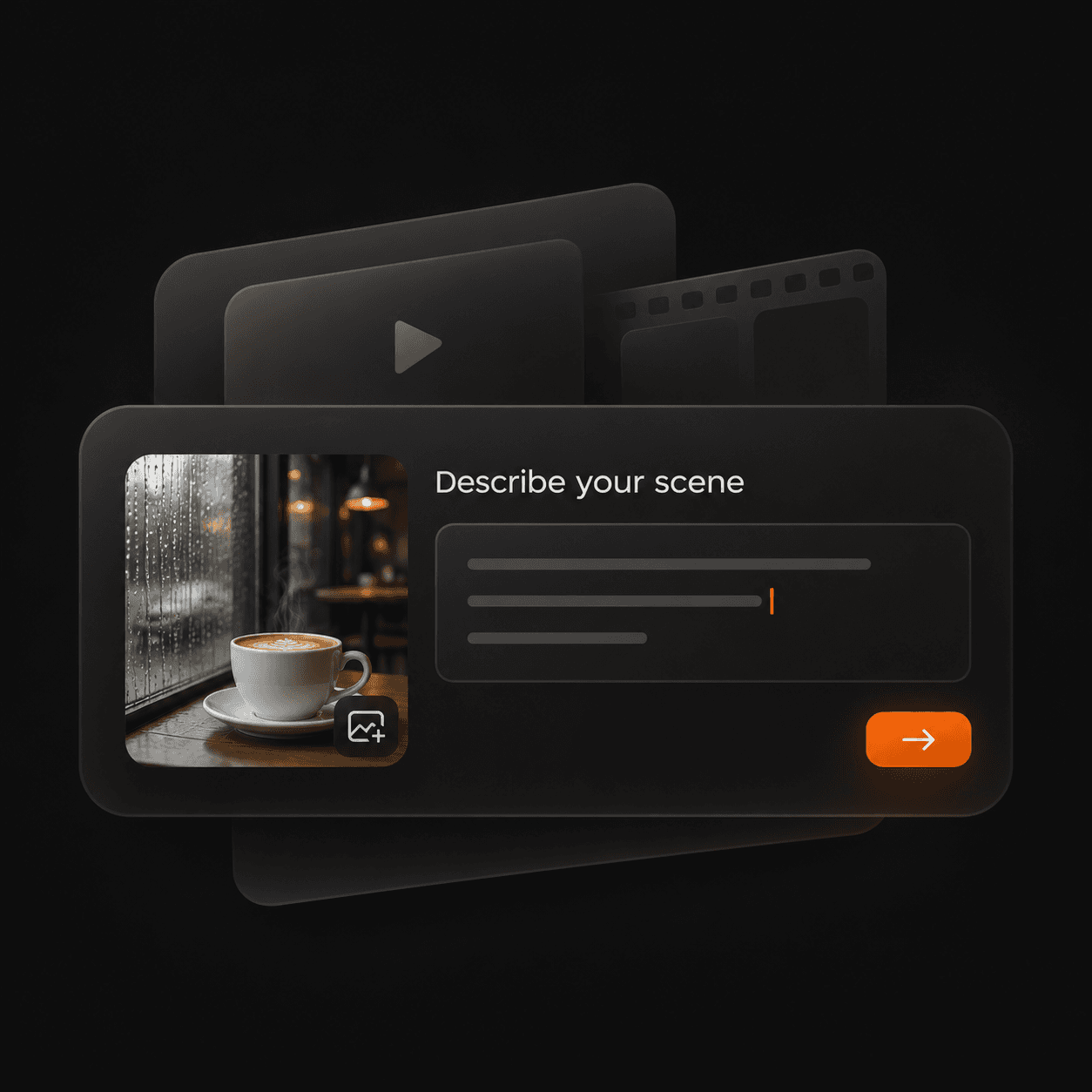
Enter your prompt and add any supported references. Describe the subject, action, setting, camera movement, and sound. For your first attempt, keep the scene focused on one main action.
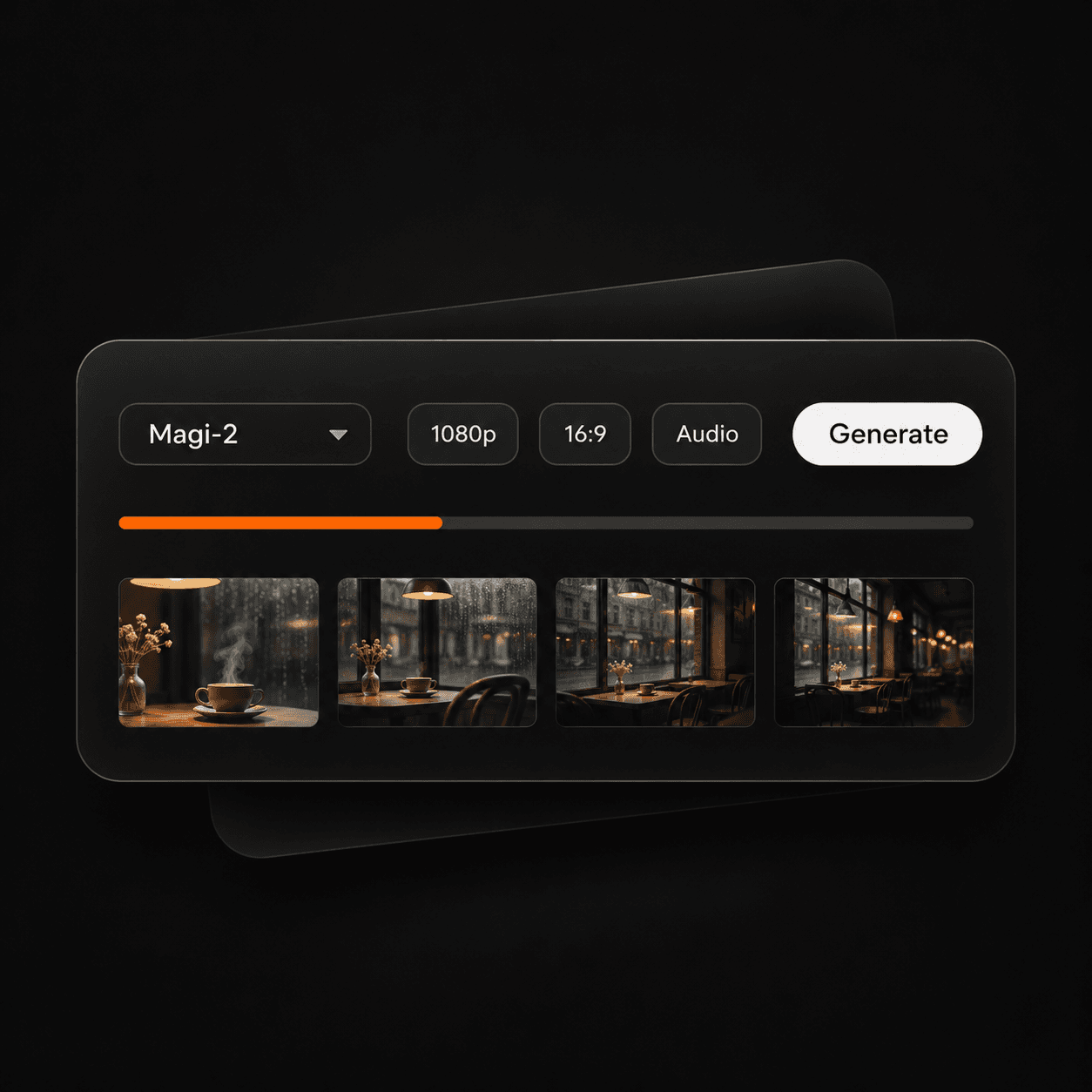
Review the model version, available duration, output settings, and displayed generation cost. Choose the options that fit your scene, then select Generate with Magi-2 to start your request.
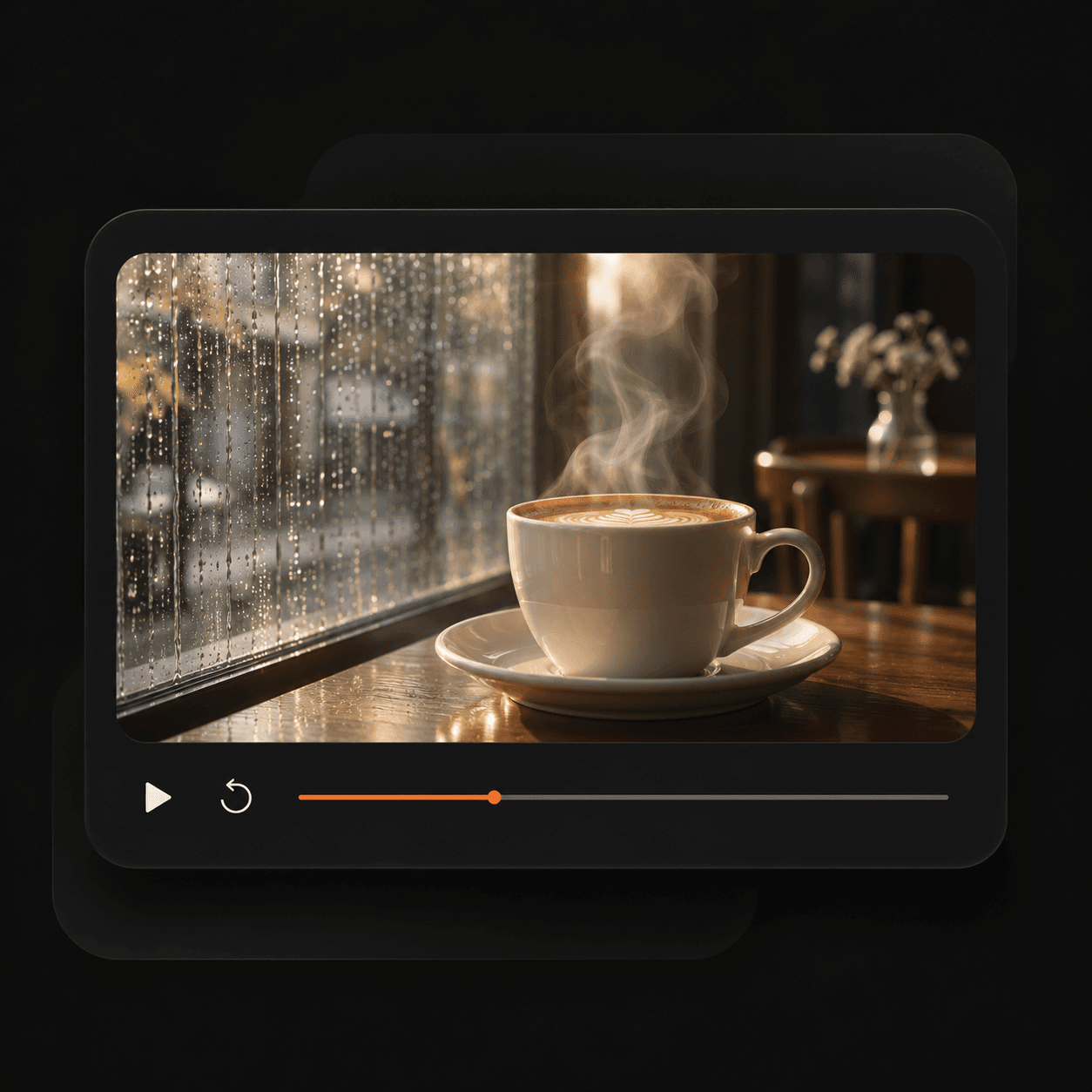
Watch your video and listen to the audio. Check movement, visual details, and sound timing. Refine any instruction that needs work, then generate another take to explore the change.
Pricing
Review the generation cost and included features before you commit.
$0.099 per credit
$0.083 per credit
$0.076 per credit
FAQ
Find answers about using Magi AI, choosing inputs, and creating videos with Magi-2.
The Magi-2 AI video generator turns creative instructions into video with sound using the Magi-2 model. Magi AI is the name of this website at magiai.io.
Start with a written scene and add supported reference media to communicate your idea. Describe the subject, action, setting, and sound so the model has a clear creative brief.
The available inputs and settings depend on the version connected to the editor. For model specifications and the differences from the research preview, read our Magi-2 overview.
To use Magi AI, describe your scene or add a supported reference, review your generation settings, and generate a video. Then watch the result and refine your next request.
Keep your first attempt focused on one main action and one camera movement. Include sound instructions if audio is part of the scene you want to create.
Check the selected model, duration, and displayed cost before submitting the request. If the result misses a detail, clarify that part of the prompt before changing the rest of your creative brief.
Yes. Magi-2 supports using images to guide video generation, and the published MAGI-2 Preview also includes an image-to-video workflow. Add a prompt to explain what should happen after the starting image.
Describe the movement you want rather than only repeating what the image already shows. You might specify a subject turning, fabric moving in the wind, or a camera moving closer.
Start with an image that clearly shows the subject and setting you want to preserve. Review the generated details, because a reference guides the output without guaranteeing an exact reproduction.
The full Magi-2 model supports image, video, and audio references. The full model supports up to 20 media items per native request: up to 10 images, five videos, and five audio clips.
Give each reference a clear role in your prompt, such as appearance, movement, or sound. Explain which details matter instead of expecting the model to infer your intention from a collection of unrelated assets.
Check the upload options and limits available in the Magi AI editor. A service may expose fewer reference inputs than the model supports, so prepare your request around the options actually shown.
The full Magi-2 model supports video generation up to 30 seconds. MAGI-2 Preview is a separate research release whose published inference pipeline supports fixed 10-second clips.
Choose the duration offered by the selected model rather than assuming every version has the same limit. A short request can help you test a single action before planning a longer scene.
For a longer sequence, put the events in order and describe the transitions you want. Review the available duration and its displayed generation cost before submitting your request on Magi AI.
The full Magi-2 model produces 1080p video at 25 frames per second. The published pipeline includes an upscaling stage to produce that output.
Check the output settings available for your selected version in the editor. The published model specification does not mean every hosting service exposes exactly the same settings.
Inspect faces, text, and fine details when reviewing a generated clip. Output resolution is one specification, while detail quality and consistency still need to be judged in the actual result.
Yes. Magi-2 generates audio and video together, including dialogue, sound effects, ambient sound, and music. The model also supports aligning generated speech with lip movement.
Describe the sound as part of the event, such as footsteps during a walk or rain outside a window. For dialogue, identify the speaker and include the words you want spoken.
Listen to the generated audio as well as watching the video. Complex soundscapes remain an area for improvement, so check sound timing, layering, and clarity before choosing a take.
Yes. Magi-2 supports instructions for camera movement, framing, timelines, and shot transitions. Describe the sequence you want in your prompt, including where a movement starts or a cut should happen.
For an initial test, try one camera move with one main action. A clear instruction such as moving closer to a subject is easier to evaluate than several competing camera directions.
For multiple shots, describe what changes and what should stay consistent between them. Review the timing in the generated result and revise any instruction that did not produce the intended transition.
The full Magi-2 model supports start-frame and end-frame guidance. These inputs let you specify images for the beginning and ending of a scene.
On Magi AI, use this workflow only when the corresponding frame controls are available in the editor. General image references and dedicated start or end frames serve different roles, so check which input type you are adding.
Describe the action that should connect the two frames rather than leaving the transition unexplained. Review the intermediate motion as well as the opening and closing images when assessing the result.
Yes. The full Magi-2 model supports targeted edits to existing video. The available editing workflow depends on the inputs and controls exposed by the service you use.
When a video-editing input is available, provide the source clip and describe the specific change you want. Explain which details should remain, such as the subject’s movement, the setting, or the camera direction.
Review the edited area and the surrounding frames for unintended changes. If the result alters too much, narrow the instruction and test a more focused edit before building a longer request.
A useful Magi-2 prompt describes the subject, setting, action, camera movement, lighting, and sound. Put events in a clear order and explain how each reference should guide the scene.
Begin with one main action so you can judge whether your direction is being followed. If the result misses a detail, revise that instruction before changing the entire scene.
For dialogue, identify the speaker, the words, and the intended delivery. Read the Magi-2 prompt guide for more examples, then adapt the structure to the scene you want to create.
Magi-2 and MAGI-2 Preview are different releases. The full model supports scenes up to 30 seconds and broader reference workflows, while the published Preview inference pipeline generates fixed 10-second clips.
The Preview supports text-to-video and image-to-video generation with sound. Its published pipeline uses a refiner for 1080p output, while the full model has its own generation and upscaling workflow.
Check the exact version name when choosing a tool or comparing example videos. Do not assume that a Preview deployment includes every capability described on the full Magi-2 product page.
Get Started
Start with a clear idea, describe the shot, and explore your first take.